How to / Share or move your tree
How to find and fix missing media links in a GEDCOM
Compare GEDCOM media paths with a folder on your device, review ambiguous matches, and download a corrected file without uploading photos.
Beginner15 minutesChecked against the tools on 6 Sep 2026Uses Media Portability Workbench and GEDCOM Validator
find-and-fix-missing-media-links-in-a-gedcom.md, 6,506 characters. The same bytes answer at /how-to/find-and-fix-missing-media-links-in-a-gedcom.md.
Your tree opens on a new computer, but its photographs do not. Use Media Portability Workbench to compare the links in your GEDCOM with the files in a folder you choose. You approve each replacement and download a new GEDCOM. Keep your original file and media folder unchanged until you have checked the result.
Why media links break
A GEDCOM can record a media path without containing the photograph. A path such as C:\Family\photos\portrait.jpg names a location on the old computer. Moving the photograph, renaming a directory, or receiving a GEDCOM without its media can break that link.
Matching a filename does not establish which photograph it contains. Two folders can each hold a different portrait.jpg. This tool compares paths, names and directory structure. It reads no image contents, fetches no external URLs, and creates no new links between people and photographs.

Diagram source
flowchart TD
  A["Choose a GEDCOM and its media folder"] --> B["Check existing media paths"]
  B --> C{"Can you identify the matching file?"}
  C -- "yes" --> D["Select the replacement and inspect the preview"]
  C -- "no" --> E["Keep the reference and investigate"]
  D --> F["Save a new GEDCOM inside the chosen folder"]
  F --> G["Recheck the export and test it in your genealogy program"]
The steps
- Open Media Portability Workbench and choose your GEDCOM.
- Under Choose your media folder, use Media folder to select the directory that will contain the corrected GEDCOM, beside its photos and subfolders. The browser may call this an upload; the tool keeps the inventory on your device. It receives folder-relative filenames and sizes, not permission to move or overwrite files.
- Click Check media paths. Read Media path findings. Each row names the record, line, original path, status and match signals.
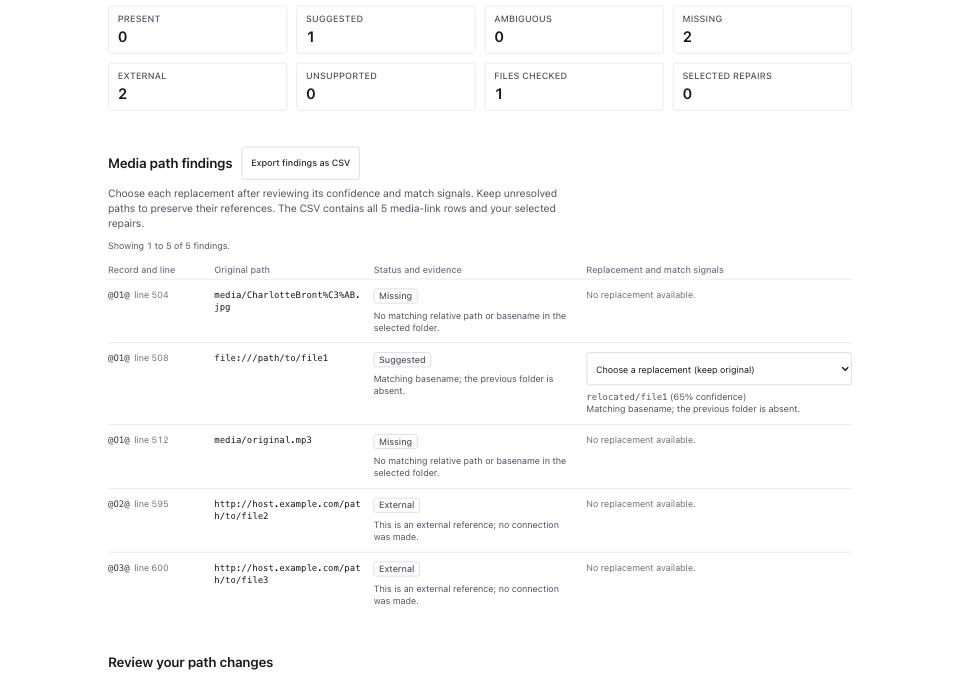
- Use the status to decide what needs review:
| Status | What to do |
|---|---|
| Present | Keep the existing path. The matching path exists in the selected inventory; the tool has not opened the image. |
| Suggested | Inspect the proposed location, then choose it if it is the intended file. |
| Ambiguous | Open the candidates on your device and identify the correct file before selecting a replacement. |
| Missing | Find the media, ask its owner for a copy, or leave the reference for later research. |
| External | Check access to the remote resource yourself. The tool has not fetched it. |
| Unsupported | Read the reason. The tool preserves a path it cannot rewrite safely. |
- Choose replacements in the findings table. No replacement starts selected. On a narrow screen, scroll the table sideways to reach Replacement and match signals.
- Read Review your path changes. In GEDCOM 7, the preview uses URI escaping, so a filename containing an accent or a space may contain
%sequences. Compare the selected filename as well as the exported spelling. - Click Export findings as CSV if you need a checklist. It contains the media-link rows and selected repairs, including rows outside the current table page. Treat filenames and directory paths as private information before sharing it.
- Click Download corrected GEDCOM. Save the downloaded file inside the selected folder, beside its contents. For a replacement
photos/portrait.jpg, put the GEDCOM beside thephotosdirectory. The download contains the GEDCOM only. Copy the media yourself when moving the folder; the tool does not create a ZIP or GEDZip bundle.
What to check when it worked
- Load the downloaded GEDCOM and select the same media folder. Run Check media paths again. Approved paths should now read Present.
- Confirm that unresolved and external references remain available for investigation.
- Open the copy in your genealogy program and check several photographs against the people they illustrate. An importer may resolve relative paths differently.
- Run GEDCOM Validator on the export and investigate any new structural errors.
What to do when it did not
No media file links. The file may contain no FILE values under media records. Add media links in your genealogy program and export again. This workbench repairs existing links; it cannot assign a folder of photographs to people.
The folder picker returns nothing. Choose a folder containing files in a browser with directory selection support. Empty folders provide no inventory. Extract an archive before selecting its folder.
Too many candidates have the same name. Read the full paths and inspect the actual files on your device. The page shows at most 50 candidates per row; the candidate count can be larger. Leave a link unchanged if the correct candidate is not available to review.
Export refuses a filename or the repair count. The original encoding may not represent the selected path, or the selected repairs may exceed the ledger work limit. Use an encoding-compatible filename or prepare a UTF-8 working copy with Encoding Repair. For a work-limit refusal, select fewer repairs, download and recheck that output before continuing.
You chose the wrong folder or file. Use Clear media folder or Change file and start the check again. Changing the input discards the old findings and selections. Cancel check and Cancel export also require a fresh check before choosing repairs.